Aquarium Temperature Monitoring Prototype with Raspberry Pi
Overview
Knowing how water temperature changes over time is essential for keeping an aquarium healthy. Sudden swings can stress or harm fish, yet an analog thermometer gives you no historical data at all. Ideally, off-the-shelf products would log water temperature and visualize it as a graph — but IoT adoption in aquarium equipment has been slow.
Fortunately, you can build one yourself using a Raspberry Pi and a digital temperature sensor. So I threw together a quick prototype to see how it goes.
System Diagram
Here’s how the system is structured.
%%{init: {
  "theme": "base",
  "themeVariables": {
    "primaryColor": "#ffffff",
    "primaryBorderColor": "#444",
    "lineColor": "#666",
    "clusterBkg": "#fafafa",
    "clusterBorder": "#bbb",
    "nodePadding": 20
  }
}}%%

flowchart LR

subgraph SENSORS[Sensors]
  DS18B20("fa:fa-thermometer-half DS18B20 #1 ... #n")
end

subgraph RP["fab:fa-raspberry-pi Raspberry Pi"]
  direction TB

  Sampler("fab:fa-node-js Sampler")
  Agent("<img src='/icons/influxdb-cubo-pink.svg' style='width:2em;height:2em;'/> Telegraf")
  DB("<img src='/icons/influxdb-cubo-navy.svg' style='width:2em;height:2em;'/> InfluxDB")
  V("<img src='/icons/grafana.svg' style='width:2em;height:2em;'/> Grafana")
end

subgraph LAN[LAN]
  direction TB

  RP
  IPHONE("fab:fa-apple iPhone")
  ANDROID("fab:fa-android Android")
  PC("fa:fa-desktop Desktop")
end

SENSORS --1-Wire--> Sampler
Sampler --> Agent
Agent --> DB
DB --> V

V --http--> IPHONE
V --http--> ANDROID
V --http--> PC
Arrows indicate data flow direction.
- DS18B20 – A digital temperature sensor connected via the 1-Wire interface.
- Sampler – A Node.js script that reads temperature values from the sensors.
 Telegraf – An agent that runs the sampler at regular intervals and sends the readings to InfluxDB.
 InfluxDB – A time-series database used to store the sensor data.
 Grafana – A web-based tool used to visualize the data in graphs.
I went with a single Raspberry Pi 4 for this. That said, InfluxDB and Grafana can also run on a separate Pi — in that case a lower-spec model should work fine, so go ahead and try.
Setup sensors
Waterproof DS18B20 sensors with pre-attached cables are commonly available, so I used one of those. Connect a 4.7 kΩ pull-up resistor between the DS18B20 data line and the 3.3 V supply on the Raspberry Pi, then connect the data line to GPIO4 (pin 7). The nice thing about 1-Wire is that all sensors share the same three wires (power, ground, and data) — so you can connect multiple DS18B20 sensors in parallel on the same GPIO4 bus. For this prototype I just wired it up on a breadboard.
Setup Raspberry Pi
I’m running a Raspberry Pi 4 (4GB model) here.
OS version:
uname -a
Linux rpi4b4g 6.12.62+rpt-rpi-v8 #1 SMP PREEMPT Debian 1:6.12.62-1+rpt1 (2025-12-18) aarch64 GNU/Linux
cat /etc/os-release
PRETTY_NAME="Debian GNU/Linux 13 (trixie)"
NAME="Debian GNU/Linux"
VERSION_ID="13"
VERSION="13 (trixie)"
VERSION_CODENAME=trixie
DEBIAN_VERSION_FULL=13.3
ID=debian
HOME_URL="https://www.debian.org/"
SUPPORT_URL="https://www.debian.org/support"
BUG_REPORT_URL="https://bugs.debian.org/"Enable 1-Wire
Enable 1-Wire and reboot.
sudo raspi-config nonint do_onewire 0
sudo reboot
Once that’s done, 1-Wire devices should appear under /sys/bus/w1/devices/.
Make sure each sensor shows up as a 28-* directory.
Here I’ve got two sensors connected.
ls /sys/bus/w1/devices/
28-00000b1c9a3e  28-00000e8f1f2f  w1_bus_master1
You can also read a sensor value manually.
The value t=22312 means 22.312 °C.
cat /sys/bus/w1/devices/28-00000b1c9a3e/w1_slave
65 01 4b 46 7f ff 0b 10 2c : crc=2c YES
65 01 4b 46 7f ff 0b 10 2c t=22312
Sampler
Node.js
You’ll need Node.js for this. If it’s not installed yet, check the official docs.
Node.js version used here:
node --version
v24.14.0
sampler.js
This script reads temperature values from DS18B20 sensors.
It scans /sys/bus/w1/devices/ for all connected DS18B20 sensors (28-* directories), reads the raw w1_slave file for each, verifies the CRC, and parses the temperature value. If a sensor fails validation — say, a CRC error, a missing value, or a known bogus reading like 85 °C — the script just skips it. No point letting one flaky sensor ruin the whole batch.
Reads can occasionally fail if the device file isn’t ready yet — the script just ignores those too.
/usr/local/bin/rpi-aquarium/sampler.js
const fs = require('fs/promises');
const path = require('path');

const W1_PATH = '/sys/bus/w1/devices';

// return a list of connected DS18B20 sensors.
const listSensors = async () => {
  const dirs = await fs.readdir(W1_PATH, { withFileTypes: true });
  return dirs
    .filter(d => (d.isDirectory() || d.isSymbolicLink()) && d.name.startsWith('28-'))
    .map(d => d.name);
}

// return the temperature in degrees Celsius.
const readSensor = async (sensor) => {
  const raw = await fs.readFile(path.join(W1_PATH, sensor, 'w1_slave'), 'utf8');
  const lines = raw.split('\n');

  if (lines.length < 2) {
    throw new Error(`invalid w1_slave format`);
  }

  if (!/YES$/.test(lines[0])) {
    throw new Error(`CRC error`);
  }

  const t = (() => {
    const m = lines[1].match(/t=(-?\d+)$/);
    if (!m) {
      throw new Error(`no temperature value`);
    }
    return Number(m[1]);
  })();

  if (!Number.isFinite(t)) throw new Error('NaN');
  if (t === 85000 || t === 127000) throw new Error('invalid value');

  return t / 1000.0;
}

// Output JSON format to stdout.
// Do not handle errors.
(async () => {
  const time = new Date().toISOString();

  const sensors = await listSensors();
  const results = await Promise.allSettled(
    sensors.map(sensor =>
      readSensor(sensor).then(temperature => ({ time, id: sensor, temperature }))
    )
  );

  const output = results
    .filter(result => result.status === 'fulfilled')
    .map(result => result.value);

  console.log(JSON.stringify(output));
})();
Example output:
node /usr/local/bin/rpi-aquarium/sampler.js
[{"time":"2026-03-11T08:17:40.386Z","id":"28-00000b1c9a3e","temperature":23},{"time":"2026-03-11T08:17:40.386Z","id":"28-00000e8f1f2f","temperature":23.125}]
Each object contains three fields: time (an ISO 8601 timestamp), id (the sensor serial number, used as a Telegraf tag to distinguish sensors), and temperature (the measured value in °C).
Setup InfluxDB
Install InfluxDB — check the official docs for that.
InfluxDB is a time-series database — built specifically for storing data that comes in at regular intervals, like sensor readings. It’s a natural fit here.
During initial setup you’ll define an organization and a bucket. Think of the bucket as the database where your data lands. I set retention to 720h (30 days) — enough history to spot seasonal trends without hogging disk space. You’ll also need to generate an API token — go to API Tokens in the UI and create one with write access to your bucket. You’ll use it in both the Telegraf and Grafana configs later.
Setup example:
- organization:
my_aquarium - bucket:
my_tank- retention: 720h0m0s
Setup Telegraf
Install Telegraf — check the official docs.
Telegraf is a metrics collection agent. It runs on a schedule, executes the sampler, and ships the output straight to InfluxDB — so I don’t have to write any of that plumbing myself.
You’ll also need an outputs.influxdb_v2 section — grab the token from the InfluxDB UI under API Tokens.
[[outputs.influxdb_v2]]
  urls = ["http://127.0.0.1:8086"]
  token = "xxxxxxxxxxxxxxxxxxxxxxxxxxxxxxxxxxxxxxxxxxxxxxxxxxxxxxxxxxxxxxxxxxxxxxxxxxxxxxxxxxxxxxxxxxxx"
  organization = "my_aquarium"
  bucket = "my_tank"
Then configure Telegraf to run the Sampler and write the results to InfluxDB.
Add the following to /etc/telegraf/telegraf.conf:
[[inputs.exec]]
  commands = ["node /usr/local/bin/rpi-aquarium/sampler.js"]
  timeout = "10s"
  data_format = "json"
  json_time_key = "time"
  json_time_format = "2006-01-02T15:04:05Z07:00"
  tag_keys = ["id"]
A few things worth knowing about this config:
commands— the script to run. Telegraf spawns it as a subprocess each interval.timeout— if the script hangs longer than this, Telegraf kills it and moves on.data_format = "json"— tells Telegraf to parse the output as JSON.json_time_key— which field to use as the timestamp.tag_keys = ["id"]— promotesidto an InfluxDB tag, so you can filter by sensor in Grafana.
The sampling interval isn’t set here — it’s controlled by the interval value in the [agent] section of /etc/telegraf/telegraf.conf. The default is 10s.
Then just restart the service.
sudo systemctl restart telegraf.serviceCheck its status:
systemctl status telegraf.service
● telegraf.service - Telegraf
     Loaded: loaded (/usr/lib/systemd/system/telegraf.service; enabled; preset: enabled)
     Active: active (running) since Wed 2026-03-11 19:08:08 JST; 20h ago
 Invocation: 5e8fda3bd3d0444486c9db038c9b6ac8
       Docs: https://github.com/influxdata/telegraf
   Main PID: 4566 (telegraf)
      Tasks: 14 (limit: 3918)
        CPU: 31min 44.828s
     CGroup: /system.slice/telegraf.service
             ├─4566 /usr/bin/telegraf -config /etc/telegraf/telegraf.conf -config-directory /etc/telegraf/telegraf.d
             └─4579 /usr/bin/dbus-daemon --syslog --fork --print-pid 4 --print-address 6 --session

Mar 11 19:08:08 rpi4b4g telegraf[4566]: 2026-03-11T10:08:08Z I! Starting Telegraf 1.38.0 brought to you by InfluxData the makers of>
Mar 11 19:08:08 rpi4b4g telegraf[4566]: 2026-03-11T10:08:08Z I! Available plugins: 244 inputs, 9 aggregators, 35 processors, 26 par>
Mar 11 19:08:08 rpi4b4g telegraf[4566]: 2026-03-11T10:08:08Z I! Loaded inputs: cpu disk diskio exec kernel mem processes swap system
Mar 11 19:08:08 rpi4b4g telegraf[4566]: 2026-03-11T10:08:08Z I! Loaded aggregators:
Mar 11 19:08:08 rpi4b4g telegraf[4566]: 2026-03-11T10:08:08Z I! Loaded processors:
Mar 11 19:08:08 rpi4b4g telegraf[4566]: 2026-03-11T10:08:08Z I! Loaded secretstores:
Mar 11 19:08:08 rpi4b4g telegraf[4566]: 2026-03-11T10:08:08Z I! Loaded outputs: influxdb_v2
Mar 11 19:08:08 rpi4b4g telegraf[4566]: 2026-03-11T10:08:08Z I! Tags enabled: host=rpi4b4g
Mar 11 19:08:08 rpi4b4g telegraf[4566]: 2026-03-11T10:08:08Z I! [agent] Config: Interval:10s, Quiet:false, Hostname:"rpi4b4g", Flus>
Mar 11 19:08:08 rpi4b4g telegraf[4566]: 2026-03-11T10:08:08Z W! [agent] The default value of 'skip_processors_after_aggregators' wi>
lines 1-22/22 (END)
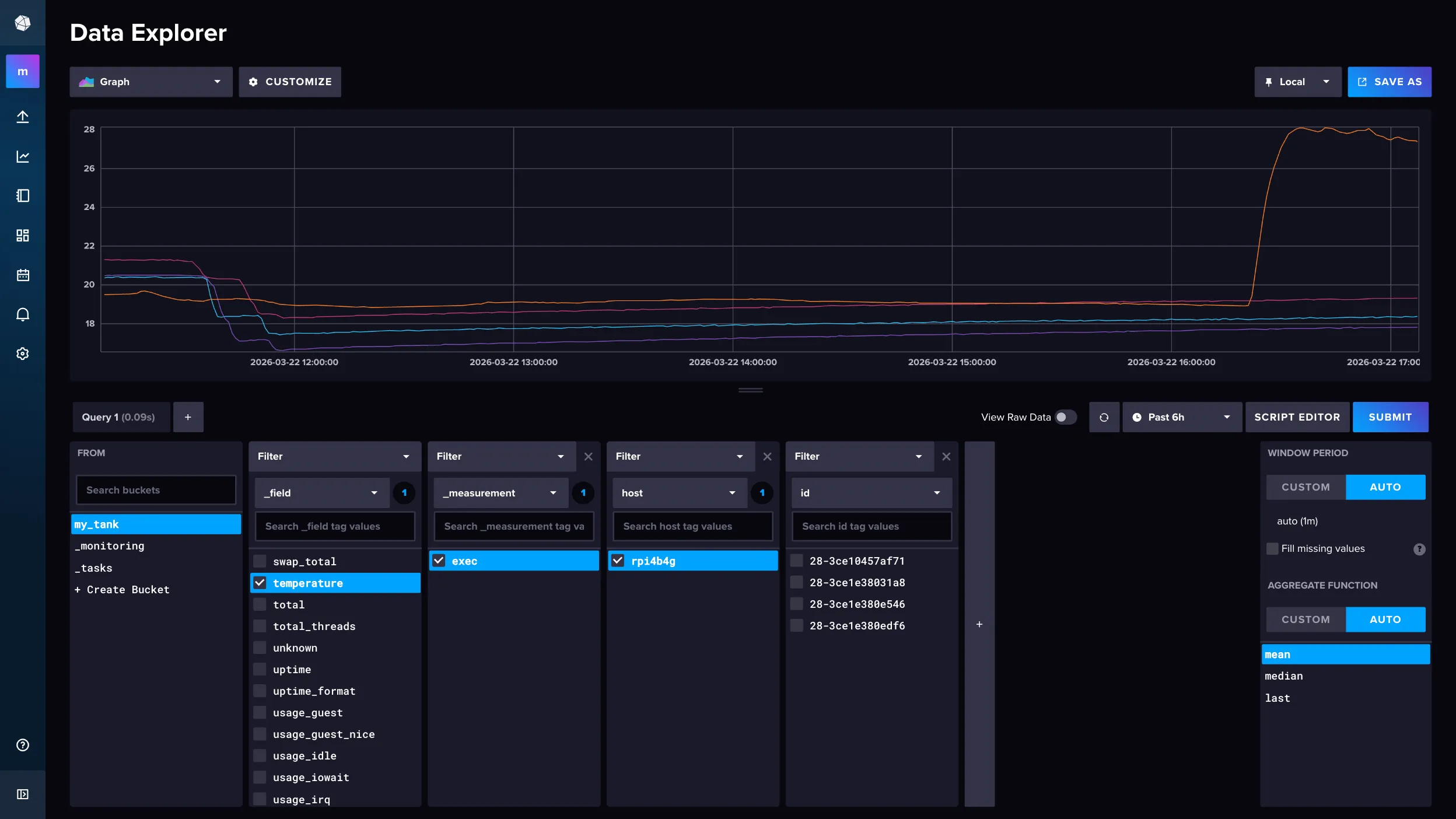
Once Telegraf is running, you can verify the data is flowing in via InfluxDB Data Explorer.
Setup Grafana
Install Grafana — check the official docs.
Grafana is a dashboarding tool that connects to InfluxDB and turns the raw data into charts. First, add InfluxDB as a data source: go to Connections → Data sources → InfluxDB, set the query language to Flux, and fill in the URL, organization, token, and bucket.
Dashboard example:
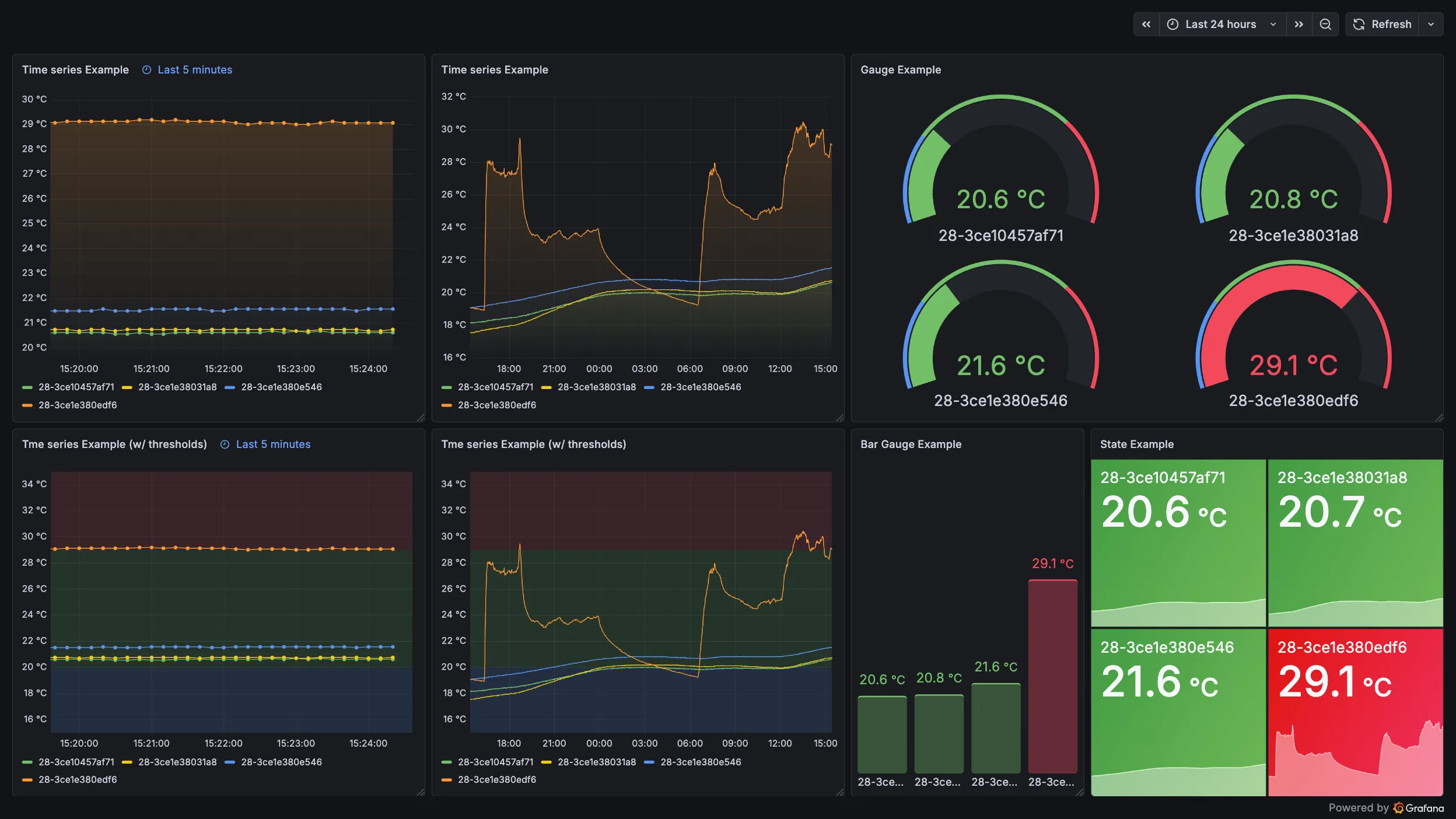
Time series panel example
Time series panels plot values over time as a line chart — good for spotting trends, anomalies, or how temperature drifted across the day.
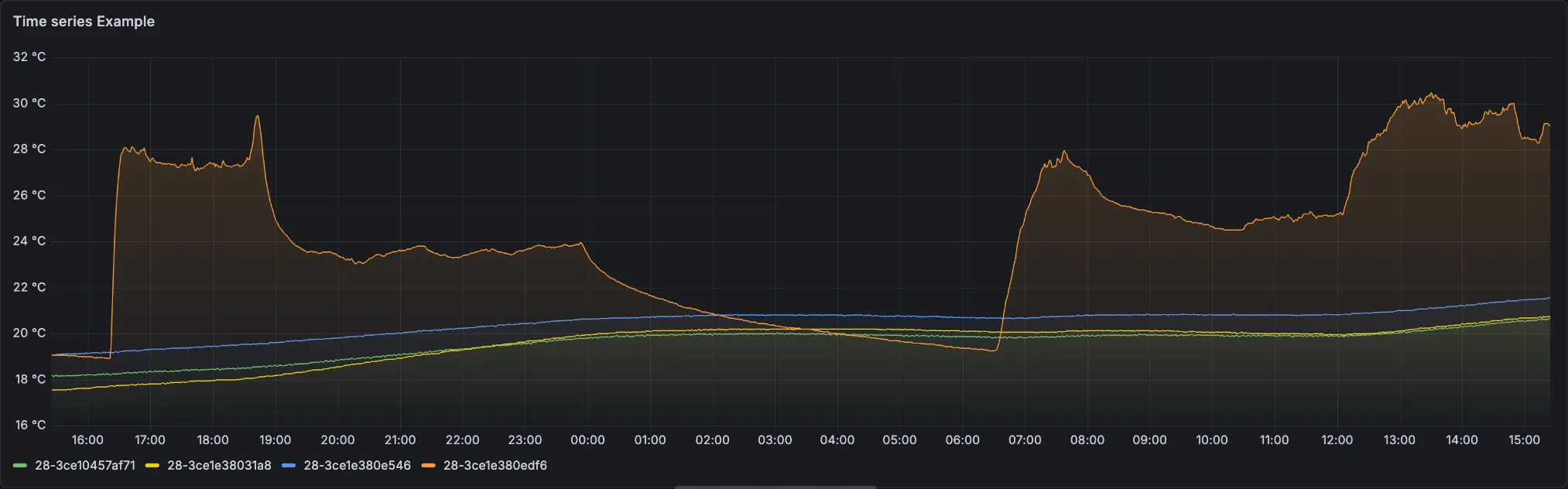
Flux query:
from(bucket: "my_tank")
  |> range(start: -12h)
  |> filter(fn: (r) => r._measurement == "exec" and r._field == "temperature" )
  |> aggregateWindow(every: 1m, fn: mean)
This pulls all temperature readings from the exec measurement over the last 12 hours. The exec measurement name comes from Telegraf’s [[inputs.exec]] plugin — that’s just what it uses by default.
aggregateWindow(every: 1m, fn: mean) downsamples the raw 10-second data into 1-minute averages — so the chart stays readable without plotting thousands of individual points.
Standard options: Set the unit to Celsius (°C).
Graph styles:
- Gradient mode:
Opacity
Override: Set Display name to ${__field.labels.id} — Grafana replaces it with the id label from InfluxDB, so each line gets the sensor’s ID as its legend label automatically.
Gauge panel example
Gauge panels show the current value on a dial — useful for a quick snapshot of “where is each sensor right now” without scrolling through history.
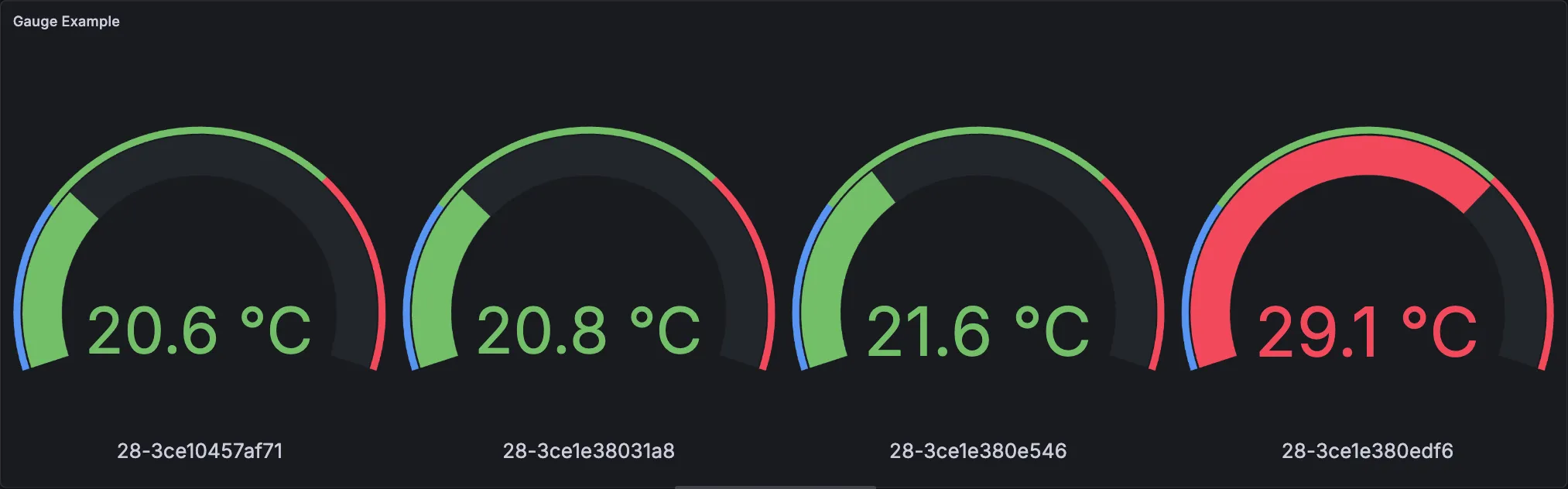
Flux query:
from(bucket: "my_tank")
  |> range(start: -5m)
  |> filter(fn: (r) => r._measurement == "exec" and r._field == "temperature")
  |> last()
This one only grabs the most recent reading from the last 5 minutes — last() filters it down to a single value per sensor. Good for a “current temperature” display.
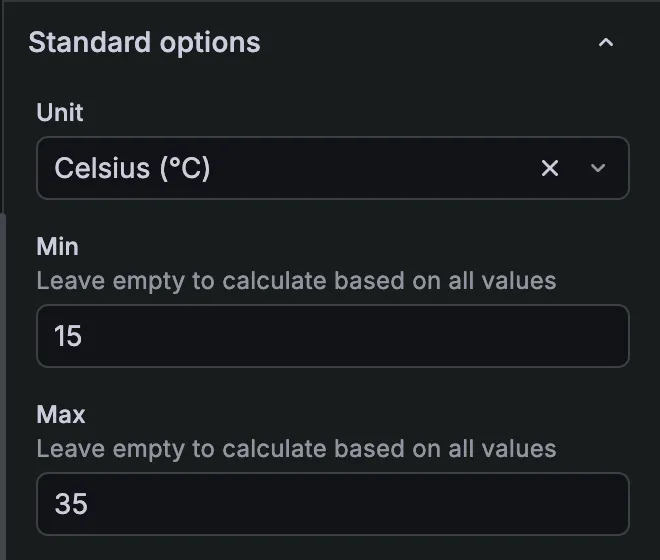
Standard options: Set the unit to Celsius (°C) and the min/max range so the gauge doesn’t look weird with default auto-scaling.
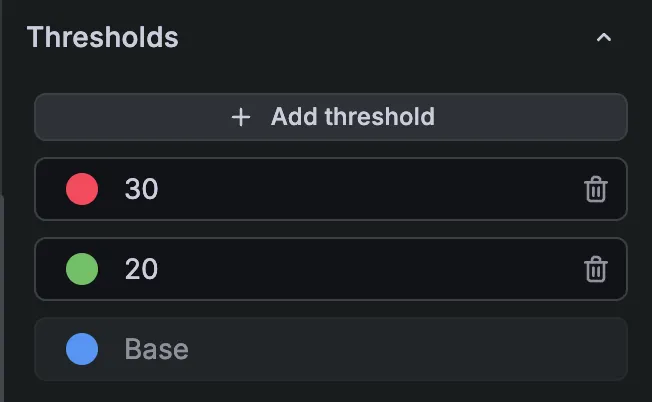
Thresholds: I set green/yellow/red thresholds based on the comfortable range for my fish — adjust to suit yours.
Override: Use ${__field.labels.id} as the Display name override value — same as the time series panel — so each gauge shows the sensor’s ID automatically.
Bar gauge panel example
Bar gauge lines up each sensor’s current value as a vertical bar — bar height maps to value, and color shifts with thresholds. So you can compare all sensors side by side and spot anything out of range at a glance.
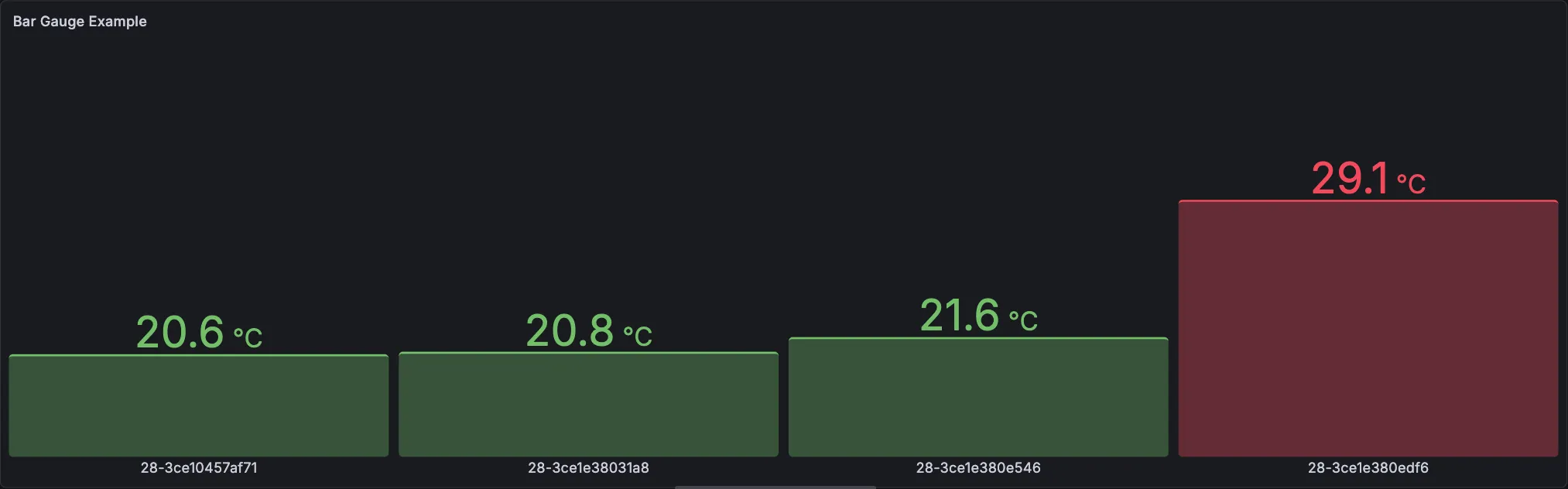
Flux query: Same as the gauge example.
Bar gauge:
- Orientation:
Vertical - Display mode:
Basic - Show unfilled area:
off
Standard options: Same as the gauge example.
Thresholds: Same as the gauge example.
Override: Same as the time series or gauge example.
Stat panel example
Stat panels display the latest value as a large number with a colored background — the simplest way to see all sensors at a glance and immediately know if anything is out of range.
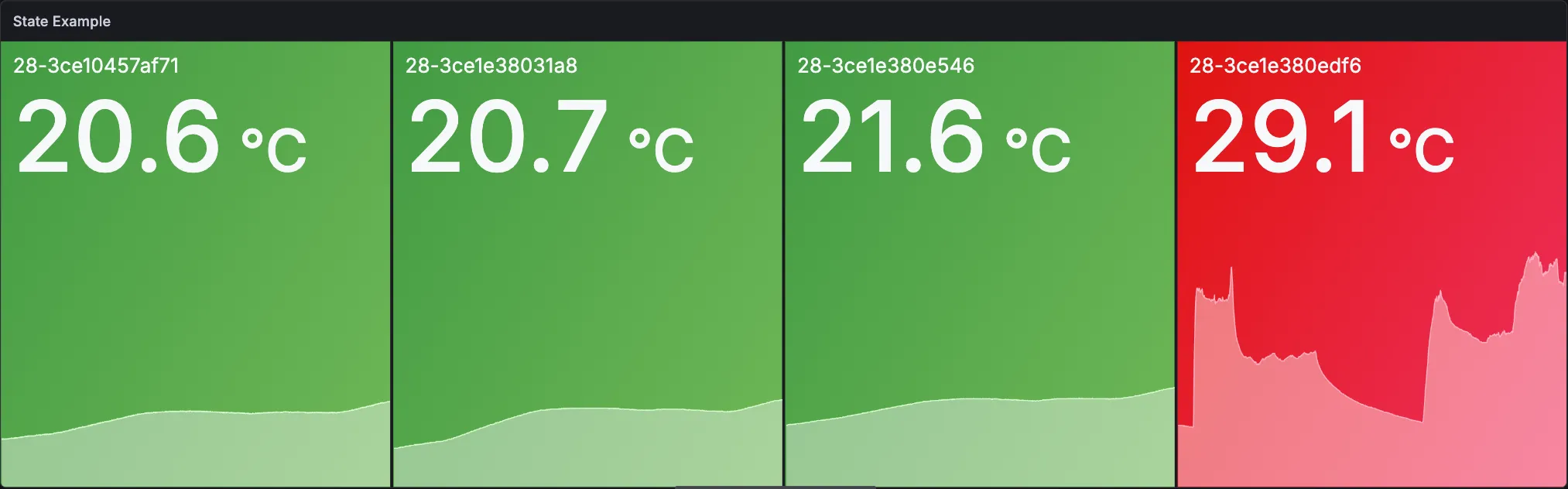
Flux query: Same as the time series example.
Stat styles:
- Orientation:
Horizontal - Text mode:
Value and name - Color mode:
Background Gradient
Standard options: Same as the gauge example.
Thresholds: Same as the gauge example.
Override: Same as the time series or gauge example.